
SimpleScreenRecorder Explained: An Easy Way to Record Your Linux Screen
Recording what happens on a computer screen has become a routine part of modern work and learning. Teachers record lessons, developers record bug demonstrations, gamers record their play, and support teams record short guides for customers. On Linux, one of the most approachable tools for this job is simplescreenrecorder, a program built around a simple idea: recording should be easy to start, easy to understand, and reliable enough that you do not lose a good take to a confusing setting. It does not try to be a full video editor or a live streaming studio. Instead, it focuses on doing one thing well, which is capturing your screen and your sound into a clean video file that you can share, edit, or archive.
What SimpleScreenRecorder Actually Does
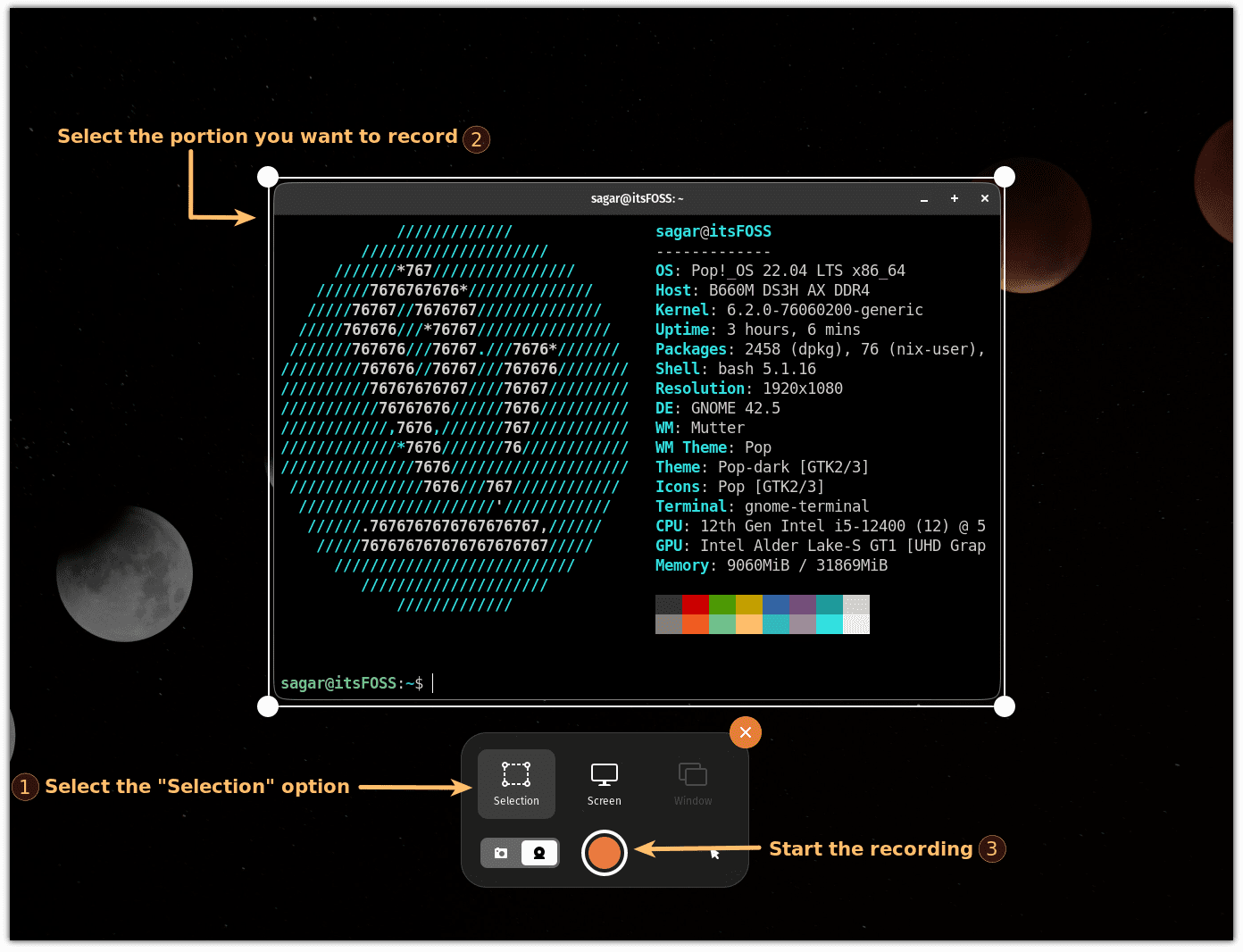
At its core, SimpleScreenRecorder captures the image of your screen and the sound from your system or microphone, then encodes both into a video file. You can record the whole screen, a single window, or a rectangular region that you draw with the mouse. You can also choose whether to record the mouse cursor, which matters when you are demonstrating a sequence of clicks. The program supports the X11 display system used by most traditional Linux desktops, and it offers a preview so you can see what will be recorded before you press the record button. Because the interface is a short wizard rather than a wall of options, a first-time user can go from opening the program to recording in a couple of minutes, and that low barrier is a large part of its appeal.
Why Linux Users Choose It
Linux users often value tools that are light, open, and honest about what they do. SimpleScreenRecorder fits that description. It is open-source software, which means its code can be inspected and improved by the community, and it is available in the software repositories of many popular distributions, including Ubuntu, Debian, Fedora, and Arch-based systems. It does not demand a powerful gaming computer for basic recordings, and it does not watermark your videos or limit recording length. For someone who only needs a dependable recorder for tutorials, meetings, or gameplay clips, that combination of simplicity and freedom is often more attractive than a heavier studio application with dozens of features they will never open.
Installing the Program
Installation is usually a single command in a terminal, or a quick search in a graphical package manager. On Ubuntu and Debian-based systems, the package is typically listed under its short name, and installing it also pulls in the libraries it needs for video encoding. If you prefer the newest version, the project website explains how to add the developer repository for your distribution. The official site for the project is simplescreenrecorder.com, where you can find downloads, documentation, and answers to common questions. Once installed, the program appears in your applications menu, ready to launch like any other desktop tool.
Making Your First Recording
When you open SimpleScreenRecorder, it walks you through a few choices: what to record, what video and audio inputs to use, and where to save the finished file. A sensible first recording is a short one, perhaps thirty seconds of you moving between windows and speaking into a microphone. This test answers the two questions that matter most: is the picture sharp, and can you hear yourself clearly? If the answer to both is yes, you are ready for a real recording. If the picture looks blocky, raise the video quality or lower the frame rate. If the sound is faint, check the microphone volume in the audio settings before you record anything important.
Video and Audio Settings in Plain Language
The settings that confuse new users most are frame rate, codec, and container, but each one is simple once explained. Frame rate is how many pictures per second the video contains; thirty frames per second looks smooth for most desktop work, while sixty is better for fast games. A codec is the method used to compress the video; H.264 is a safe, widely compatible choice. A container, such as MP4 or MKV, is the file format that holds the video and audio together; MP4 plays almost everywhere, while MKV is more forgiving if a recording is interrupted. For audio, recording from your microphone is right for narration, while recording system sound is right for capturing game audio or a video call. You can also record both at once if your system supports it.
Common Mistakes to Avoid
Three mistakes spoil more recordings than any other problem. The first is recording at full resolution on a slow computer, which produces stuttering video; lowering the resolution slightly or the frame rate usually fixes it. The second is forgetting to test the microphone, which leads to a perfect video with no usable sound. The third is saving to a nearly full disk, because video files grow quickly, especially at high quality. A quick check of free disk space before a long recording saves a great deal of frustration. It is also worth closing programs you do not need, since a busy computer has less power left for smooth encoding.
When It Is the Right Tool
SimpleScreenRecorder is the right tool when your goal is a clean recording with the least possible fuss. It is ideal for classroom lessons, software demonstrations, bug reports, and short gameplay clips. It is less suitable if you need live streaming, scene switching, or complex editing, and in those cases a studio application is a better fit. Knowing that boundary helps you choose quickly instead of fighting a tool that was never designed for the job. For everyday screen recording on Linux, however, few programs match its balance of simplicity, reliability, and control, and that is why it remains a favourite years after its first release.


